

A4. Portfolio Intelligence
Build Brand or Category Portfolios that organize your market context, research assets and future studies.
What Is a Portfolio?
A Portfolio is the structural foundation for research in consumr.ai. It stores the context that the platform needs to understand what the research is about, including the product category, geographic market, language, and organizational access. Depending on the Portfolio type, it can also include a focal brand, product, competitive set, and Brand Guidelines.
This context can be reused across AI Twins, surveys, focus groups, interviews, and other research activity. Teams do not need to redefine the same market information for every study, and completed research remains organized around a recognizable brand or category.
Portfolios are particularly useful for organizations managing research across multiple brands, clients, products, markets, or business units. Each Portfolio belongs to an organization and can be kept private, shared with the organization, or assigned to selected users.
Brand Portfolios and Category Portfolios
consumr.ai supports Brand Portfolios and Category Portfolios. The correct choice depends on whether the research begins with a specific brand or with the wider market.
A Brand Portfolio represents a named brand and its product within a category. The brand is the focal point of the research, so the Portfolio also includes a competitive set. consumr.ai can recommend competitors using the brand, category, product, and market context, or users can add competitors manually. Competitors may be classified as Direct, Indirect, Aspirational, or Emerging, allowing the Portfolio to represent different forms of competition around the focal brand.
Use a Brand Portfolio when the research question concerns a specific brand or product. This may include studying brand health, audience response, positioning, competitive performance, or how consumers perceive the brand relative to other options.
A Category Portfolio represents an entire product category. It intentionally contains no focal brand, product, or fixed competitor set. This makes it suitable for research that begins with the market itself, such as understanding category behavior, consumer needs, market movement, competing options, or emerging opportunities before narrowing the research to a particular brand.
The absence of a brand is not missing information. It is the defining purpose of a Category Portfolio. Adding a brand would change the perspective of the research by placing one market participant at the center. Brand Portfolios ask what is happening around a particular brand, while Category Portfolios ask what is happening across the market.
How Portfolio Context Works
Every Portfolio defines a product category, country, language, organization, and access level. These settings establish the market in which the research takes place and determine who can use the Portfolio.
The country defines the geographic context and the language determines the language used for research outputs. Access can be set to Private for individual use, Organization for access across the organization, or Selected users when the Portfolio should be shared with specific people.
For Brand Portfolios, the brand, product, and competitors become part of the reusable research context. The competitive set should be reviewed carefully because it influences studies that compare the focal brand with other market participants. Category Portfolios do not include this fixed competitive context because they are designed to study the category without beginning from one brand’s position.
Brand Guidelines
Brand Guidelines add a reusable description of how a brand looks, sounds, and communicates. They are available under Settings → Brand Standards and can be connected only to Brand Portfolios.
A Brand Guideline can contain the brand’s details, logo assets, colors, fonts, text styles, imagery direction, and voice. Together, these elements provide a more complete representation of the brand than its name and product information alone. This context can then remain connected to the Brand Portfolio instead of being entered separately whenever the brand is used in research.
A Brand Guideline can be assigned to one or more Brand Portfolios within the organization, but each Brand Portfolio can follow only one guideline at a time. Category Portfolios cannot follow Brand Guidelines because they intentionally have no focal brand.
How to Create and Manage a Portfolio
Before creating a Portfolio, decide whether the research should begin with a specific brand or with an entire product category. You should also confirm which organization will own the Portfolio and who will need access to it.
Walkthrough of How to Create a Portfolio
Step 1: Select the Organization and Start a Portfolio
Open the organization menu and select the account in which the Portfolio should be created. This is particularly important for users who work across multiple organizations, clients, or business units.
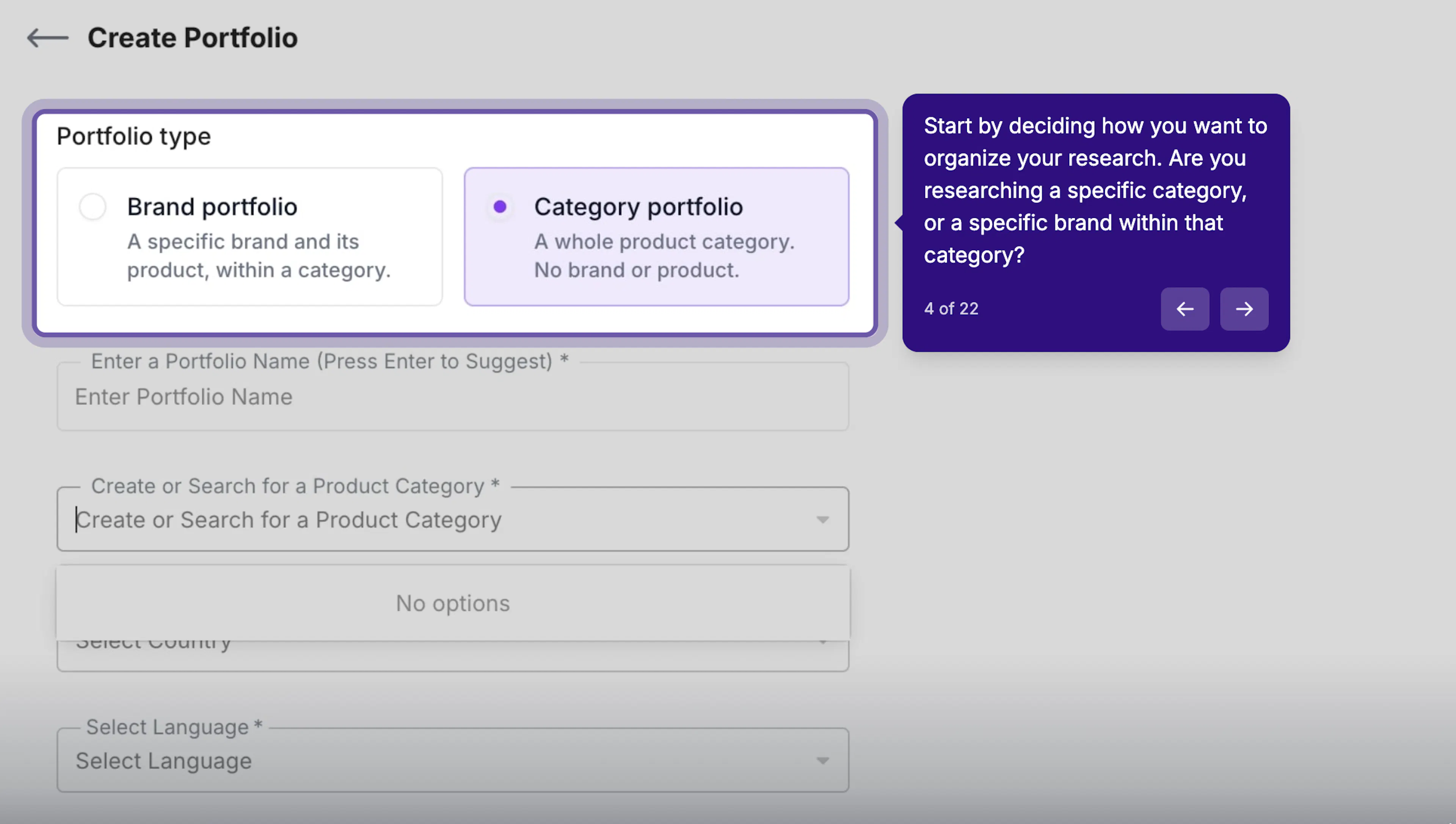
Open the Portfolio area and select the plus button. On the Create Portfolio page, choose either Brand portfolio or Category portfolio.
Step 2: Name the Portfolio and Select Its Type
Enter a clear Portfolio name that other users will recognize as the research library grows. Where indicated, you can press Enter to generate a suggested name.
Select Brand portfolio if the research is centered on a specific brand and product. Select Category portfolio if the research should cover a whole product category without setting a focal brand, product, or competitor set. The fields displayed on the page will change according to the selected Portfolio type.
Step 3: Complete the Research Context
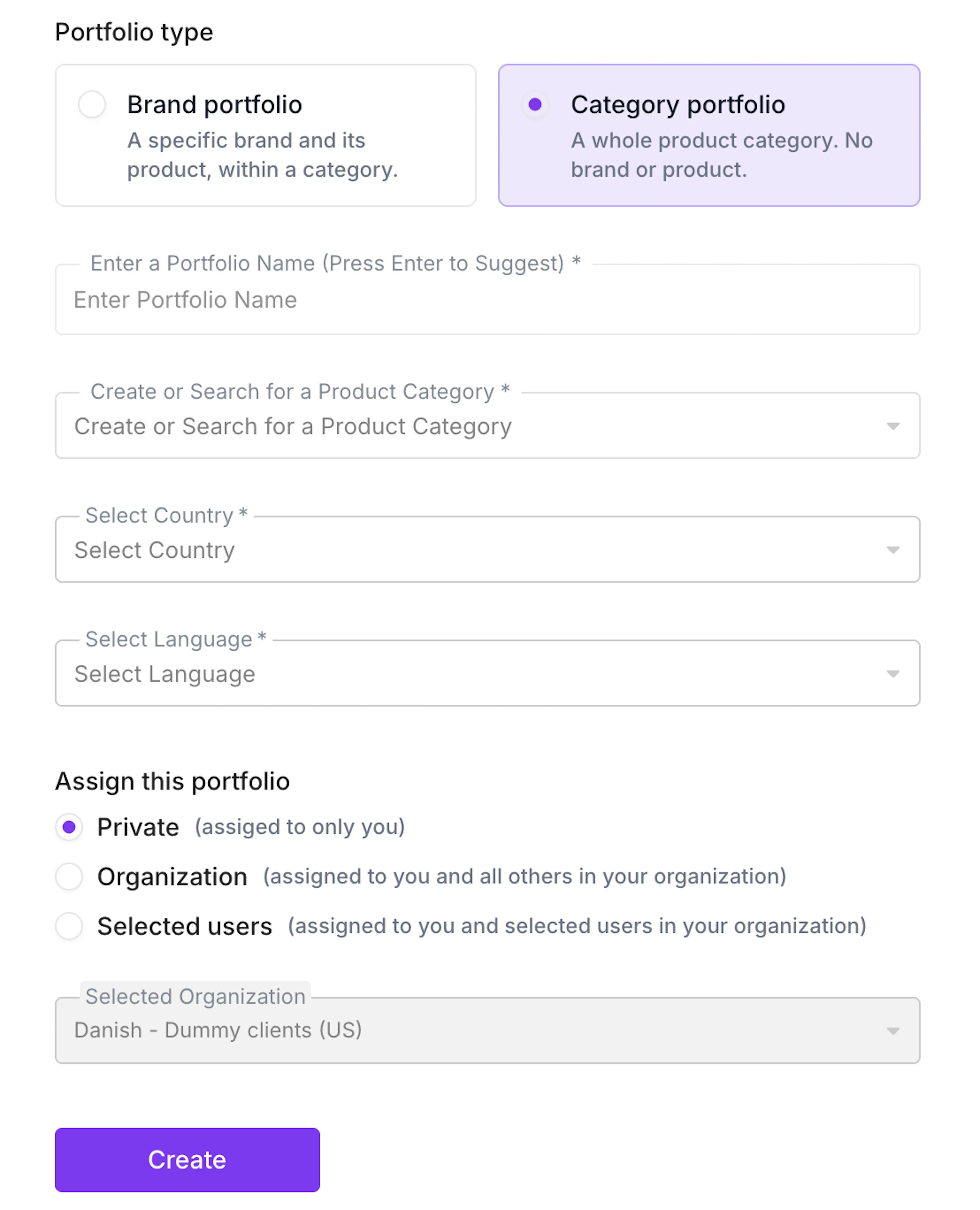
For a Brand Portfolio, enter the brand name, product category, and product name. The brand identifies the subject of the research, the product category establishes the wider market, and the product name identifies the specific offering represented by the Portfolio.
For a Category Portfolio, create or select the product category. No brand or product information is required because the Portfolio is intended to remain brand-neutral.
Select the target country and language for either Portfolio type. These settings define the geographic and language context that will be reused by research created from the Portfolio.
Step 4: Define Competitors for a Brand Portfolio
For a Brand Portfolio, select Recommend Competitor to generate competitor suggestions based on the brand, product category, product, and target market. Review the suggestions and retain the competitors that are relevant to the intended research.
Select Add Manually when a required competitor is not included in the recommendations, then enter the competitor’s brand information. Add as much accurate information as is available so the competitive set represents the market the Portfolio is intended to study.
This step does not appear for Category Portfolios because they do not use a focal brand or fixed competitor set.
Step 5: Assign Access and Create the Portfolio
Choose how the Portfolio should be assigned. Select Private when it should be available only to you, Organization when it should be available to other users in the organization, or Selected users when access should be limited to specific organizational users.
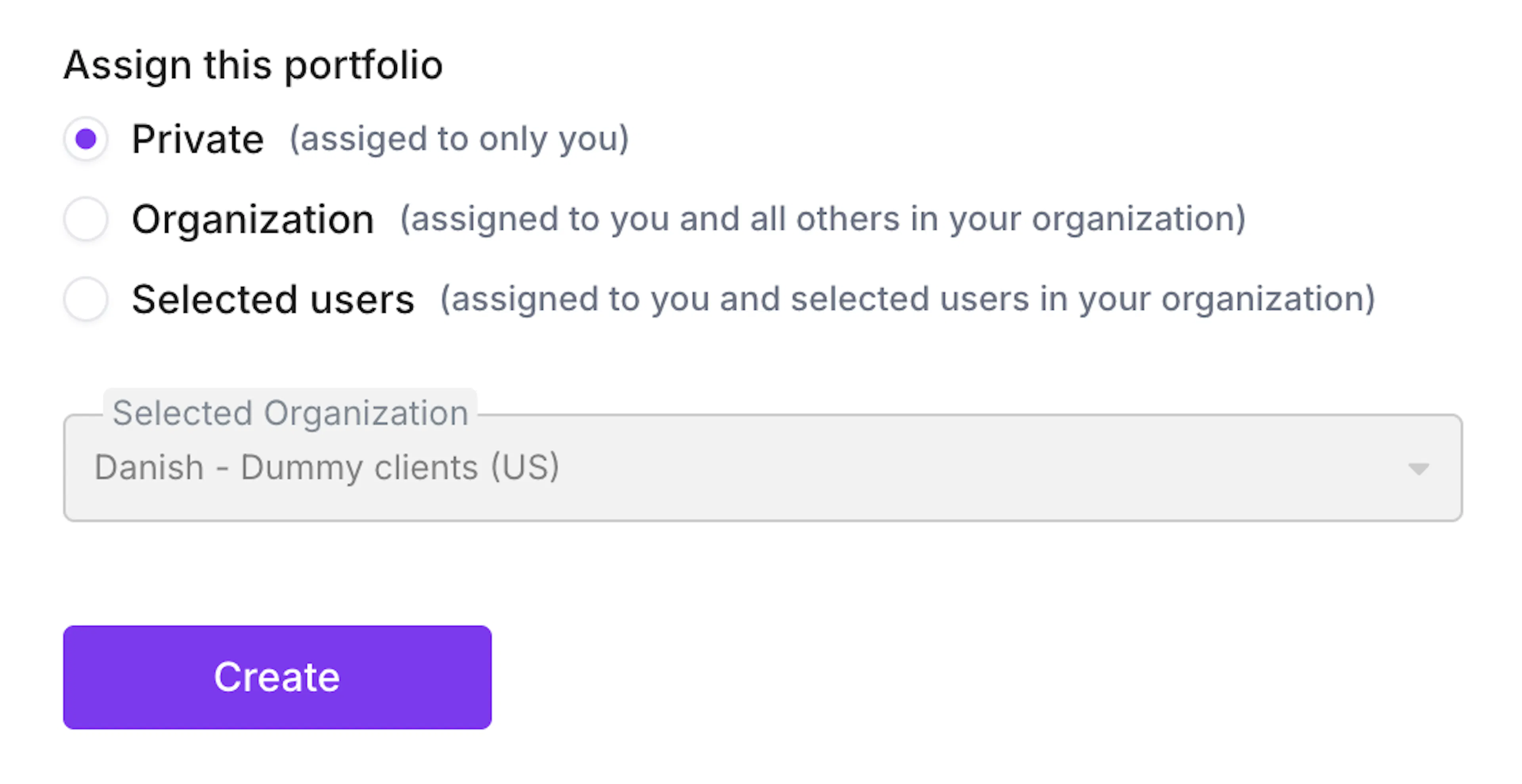
Review the selected organization and the Portfolio information, then select Create. The Portfolio will appear in the Portfolio list within the selected organization and can be used as the foundation for future research.
Step 6: Review and Update the Portfolio
Open the Portfolio list and select the arrow beside a Portfolio to view its details. The expanded view shows the information stored within that Portfolio, including its market and language settings. Brand Portfolios also include their brand, product, and competitive context.
Update the available information when the research context changes. For example, you may need to refine the product category or revise the competitive set associated with a Brand Portfolio. Select Update to save the changes.
How to Create Brand Guidelines
Brand Guidelines are created separately from the Portfolio under Settings → Brand Standards. They can be created only for brands and assigned only to Brand Portfolios.
Step 1: Open Brand Standards and Add the Details
Open Settings, select the appropriate organization, and go to Brand Standards. The page displays the organization’s existing Brand Guidelines, including their names, colors and fonts, assigned Portfolios, last-edited information, and available actions.
Select Create Brand Guideline, enter a name, and add an optional description explaining what the guideline covers. Under Portfolio Selection, choose the Brand Portfolio or Brand Portfolios that should follow it. Each Brand Portfolio can follow only one Brand Guideline at a time.
Upload the required original logo. A contrast logo and favicon can also be added when available.
Figure 4: Brand Standards page showing existing guidelines and the Create Brand Guideline button.
Figure 5: Brand Guideline details, Portfolio selection, and logo assets.
Step 2: Add the Brand’s Visual Standards
In Colors, add the colors that make up the brand palette. For each color, enter its name, select its role, and provide its HEX value.
In Fonts, add the primary typeface and its family name or source. Complete the available settings for fallback fonts, weights, and italic use. A secondary typeface can also be added when the brand uses more than one font family.
Use Text Styles to describe how the typefaces are applied. Each style can include a name, role, font, and size, with advanced settings available when more detailed typographic direction is required.
Step 3: Add Imagery and Voice
The optional Imagery section allows you to describe the brand’s visual direction and upload official examples. These examples help demonstrate how the brand should appear in practice and can provide context that written instructions alone may not capture.
Use Voice to add the brand’s Tone of Voice. You can also provide guidance for Graphic Elements & Icons, Messaging Hierarchy, and General Notes or Imported Guidelines. These fields bring the visual and verbal elements together so the guideline describes both how the brand should look and how it should communicate.
Step 4: Review and Save the Guideline
Review the at-a-glance preview as you complete the guideline and confirm that the correct Brand Portfolios have been selected. Select Save Guidelines when the information is complete.
The guideline will appear under Brand Standards, where it can be reviewed, edited, or deleted. The page also shows which Brand Portfolios currently follow it and when it was last edited.